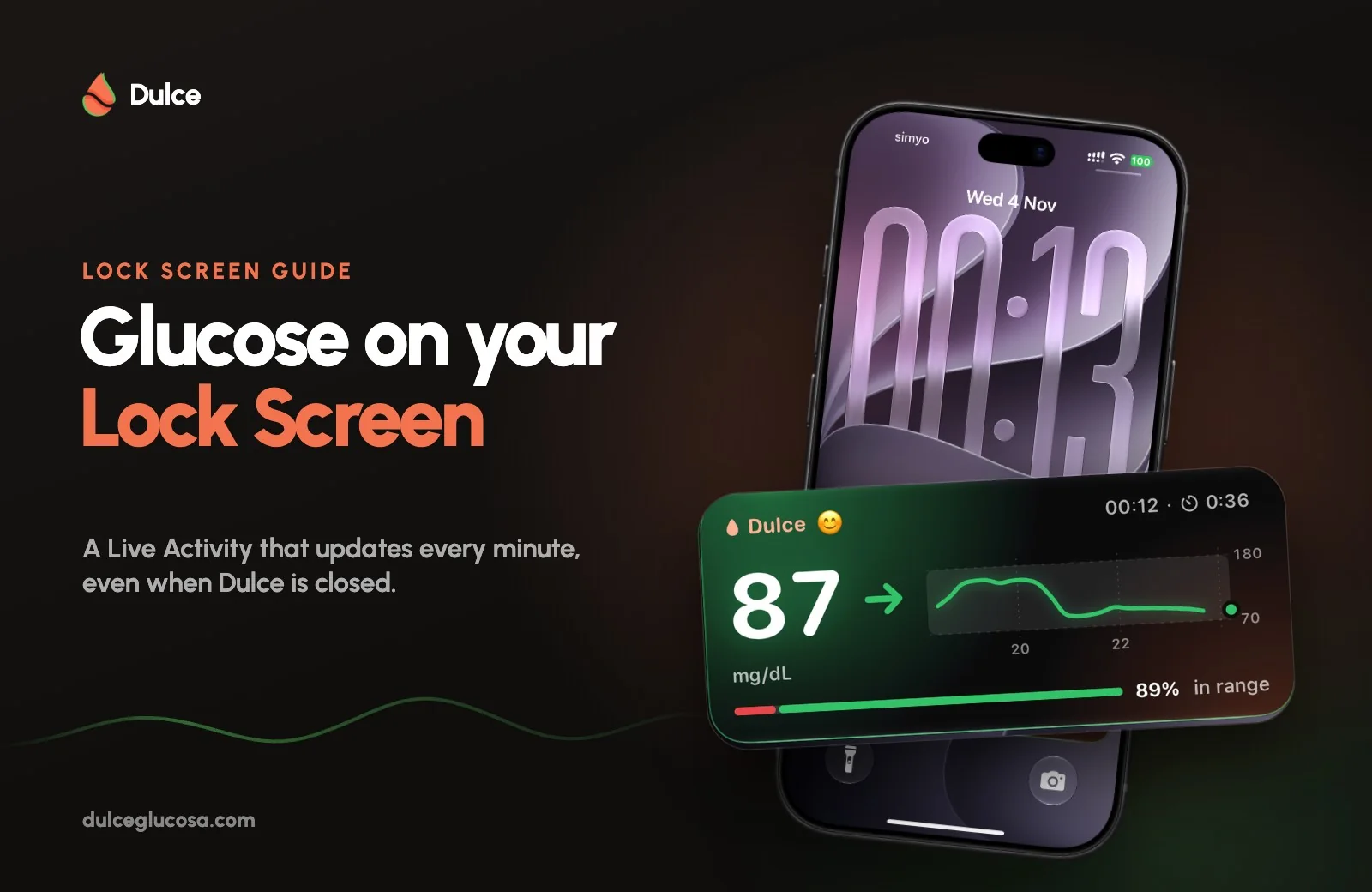
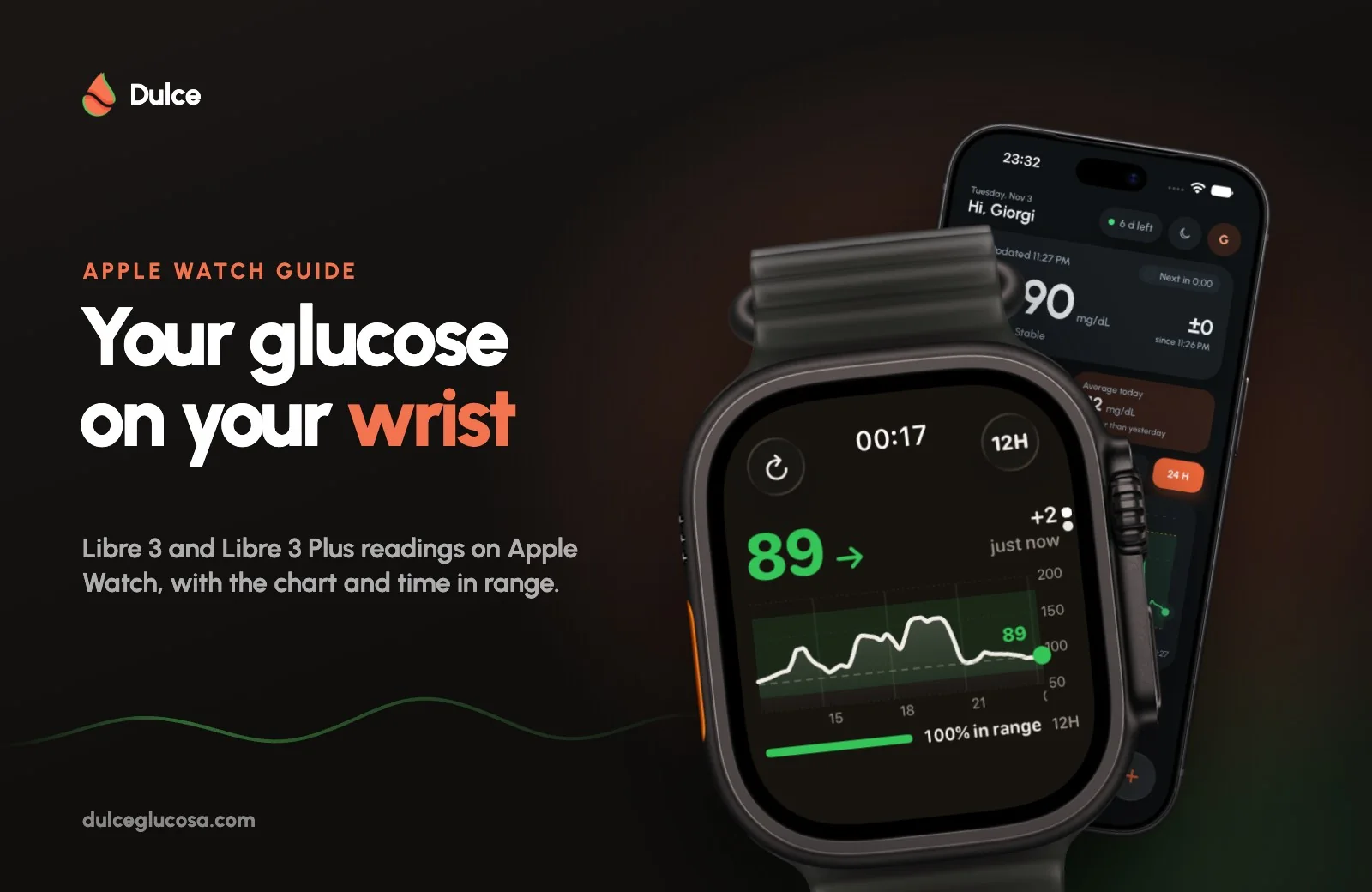
Dexcom widget, Apple Watch and CarPlay on iPhone with Dulce
Dulce shows your Dexcom G6, G7 or ONE+ glucose on the iPhone Lock Screen, the Dynamic Island, widgets, Apple Watch and, with iOS 26, CarPlay. It reads Dexcom Share with your own Dexcom account, so Share must be on in the Dexcom app with at least one follower invited, and you pick the region where you created the account. Nothing changes on your sensor or in the Dexcom app.
· 5 min read
If you wear a Dexcom G6, G7 or ONE+ and use an iPhone, Dulce now shows your glucose where you already look: the Lock Screen, the Dynamic Island, widgets, your Apple Watch and, with iOS 26, your car's CarPlay screen. It reads the same readings your Dexcom app shares through Dexcom Share, so nothing changes on your sensor or in the Dexcom app. This guide explains how it works, what you need and how to connect in a couple of minutes.
How Dulce gets your Dexcom readings
Your Dexcom app uploads each reading to Dexcom. When Share is on, Dexcom makes those readings available to followers, which is how Dexcom Follow works. Dulce signs in to the same service with your own Dexcom account (the one you use in the Dexcom app, not a follower's) and reads them from there.
Dexcom shares a new reading every 5 minutes, so that's how often Dulce updates for a Dexcom sensor. Your Lock Screen, widgets and watch count on that rhythm: a reading only shows as old once it is clearly overdue, not between two normal readings.
What you need
- A Dexcom G6, G7 or ONE+ with the Dexcom app on a phone.
- Share turned on in the Dexcom app, with at least one follower invited. Dexcom only shares readings once there is a follower; a second email address of your own is enough.
- Your Dexcom username (or email) and password, and the country where you created the account. Dexcom keeps accounts on separate servers for the United States, Japan and everywhere else.
Connect Dexcom in Dulce
Turn on Share in the Dexcom app
On the phone that's connected to the sensor, open the Dexcom app, go to Connections, then Share, and turn Share on. Invite at least one follower.
Install Dulce and pick Dexcom
Download Dulce from the App Store. On "Which sensor do you use?", tap Dexcom.
Sign in with your Dexcom account
Use the username and password you use in the Dexcom app, not the follower's. Under "Where you created your Dexcom account", pick United States, Japan or Outside the US. Your password stays encrypted on your iPhone and only goes to Dexcom.
Put it where you look
Add the widgets from your Home Screen and, with Dulce Pro, turn on the Live Activity and the Apple Watch app. See the Lock Screen guide and the Apple Watch guide.
What you get
- Lock Screen and Dynamic Island (Pro): a Live Activity with your number, trend arrow and the last hours, kept up to date by Dulce's server even with the app closed.
- CarPlay (Pro, iOS 26): the same Live Activity appears on your car's dashboard, with a large number you can read at a glance.
- Widgets (free) for the Home Screen, Lock Screen and StandBy.
- Apple Watch (Pro): an app and complications for every watch face.
- Alerts: low, high, rapid change and an alert for severe lows. See the alerts guide.
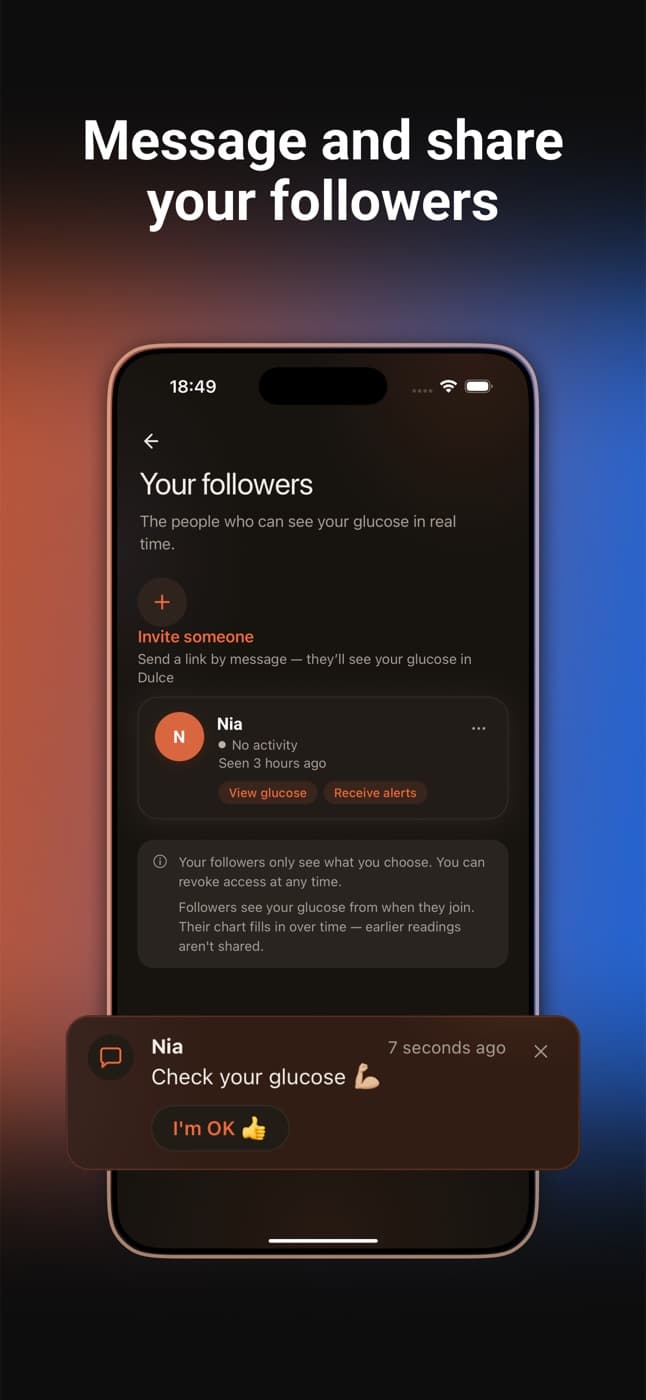
- Family: invite as many people as you like to follow you on their own iPhone with their own alerts. See family sharing.
- Logbook and Trends (free): carbs, insulin and notes on your chart, time in range, average glucose and GMI.
A Dexcom widget for your iPhone
Dulce's widgets work the same with a Dexcom as with a FreeStyle Libre, and they're free:
- Home Screen: your number with the trend arrow, or the chart of the last few hours, in small and medium sizes.
- Lock Screen: rectangular, circular or inline above the time.
- StandBy: the small widget, large on your nightstand while the iPhone charges.
iOS decides when widgets refresh, so a widget can be a few minutes behind. It always shows how long ago the reading was and has a refresh button. For a Lock Screen number that follows every Dexcom reading, use the Live Activity (Pro). Step by step: the widgets guide.
Dexcom on Apple Watch
With Dulce Pro, your Dexcom glucose shows in the Dulce watch app and in complications in all four watchOS shapes: rectangular (value, arrow and chart), circular, corner and inline.
- Which watches: any Apple Watch with watchOS 11 or later paired with your iPhone, including Apple Watch SE (2nd generation and later) and Ultra. No cellular model needed.
- When your iPhone isn't nearby: Dulce's server sends each new reading straight to the watch, so the complication keeps updating over Wi-Fi or cellular. The readings still come from the phone running the Dexcom app: if that phone is off or offline, there's nothing new to show.
- Alerts come from your iPhone and reach your wrist when the iPhone is locked.
Setting it up takes two minutes: see the Apple Watch guide.
What stays in the Dexcom app
Dexcom doesn't share when a sensor expires, so sensor change reminders stay in the Dexcom app. Calibrations and the sensor's own alarms stay there too. Dulce is a second, easier place to look, not a replacement.
Switching between FreeStyle Libre and Dexcom
If you move from a FreeStyle Libre to a Dexcom (or back), you don't need a new account in Dulce. Go to Settings › Sensor › Connect a different sensor. Your history, logbook and followers stay.
If it doesn't connect
- "We couldn't sign you in": check the username, password and the account region. A wrong region looks exactly like a wrong password.
- "Signed in, but no readings yet": Share is off in the Dexcom app, or no follower has been invited yet. Turn it on, invite one follower and try again.
- "Account locked for now": too many attempts. Dexcom unlocks the account after a while, or reset your password in the Dexcom app.
- Widget or watch shows an old number: look at the time of the last reading. If the Dexcom app is behind too, the sensor phone isn't uploading (internet, Bluetooth, Low Power Mode). If only Dulce is behind, open Dulce once and tap refresh.
Moving from another app? See how Dulce compares with Dexcom Follow and Sugarmate, or the wider glucose apps comparison.
Quick questions
Which Dexcom sensors work with Dulce?
Dexcom G6, G7 and ONE+, through Dexcom Share. Share must be on in the Dexcom app, with at least one follower invited.
Which account do I sign in with?
Your own Dexcom account, the one you use in the Dexcom app, not a follower's. Also pick the region where you created it: United States, Japan or Outside the US.
How often does it update?
Dexcom shares a new reading every 5 minutes, and Dulce updates with each one, on the Lock Screen and the watch too.
Is there a Dexcom widget or Apple Watch complication for iPhone?
Yes, with Dulce. Once you sign in with your Dexcom account (Share on), your Dexcom glucose shows in Dulce's Home Screen and Lock Screen widgets and, with Dulce Pro, in the Live Activity and on the Apple Watch app and its complications.
Does Dulce work with Apple Watch SE or Ultra?
Yes. The Dulce watch app runs on any Apple Watch with watchOS 11 or later paired with your iPhone, including Apple Watch SE (2nd generation and later) and Ultra. The watch is a Dulce Pro feature. Read more: Libre 3 and Libre 3 Plus on Apple Watch: how to see your glucose
Can I see my Dexcom on Apple Watch without my phone nearby?
Yes, as long as the watch has Wi-Fi or cellular: Dulce's server sends each new reading straight to the watch. The readings still come from the phone running the Dexcom app, so that phone must be on and online.
This article is for information and does not replace advice from your care team. Dulce is not a medical device and does not replace your sensor's alarms.
Dulce is an independent app, not affiliated with Abbott. FreeStyle Libre, LibreLink and LibreLinkUp are trademarks of Abbott.
Founder of Dulce, lives with type 1 diabetes
Giorgi lives with type 1 diabetes and founded Dulce. He built the app because he was tired of unlocking his phone, opening an app and waiting just to see one number. He writes about what he uses every day with his sensor, iPhone and Apple Watch.