See your glucose on Apple Watch
Three ways to keep up with your readings on your wrist, with the pros and cons of each.
Päivitetty 9. marraskuuta 2026 · Tämä sivu on toistaiseksi vain englanniksi.
There are three ways to see your glucose on Apple Watch, and each is good at something different. You can pick one or mix them. Most people end up with the complication on their watch face and the Smart Stack card for the moments they want every reading.
Before you start
- Apple Watch is part of Dulce Pro (you can try it free for 14 days).
- On your iPhone, open Dulce and go to Settings › Lock Screen and widgets. Turn on Apple Watch.
- Dulce installs on the watch by itself. If it doesn't, open the Watch app on your iPhone, scroll to Available Apps and tap Install next to Dulce.
Complication on your watch face
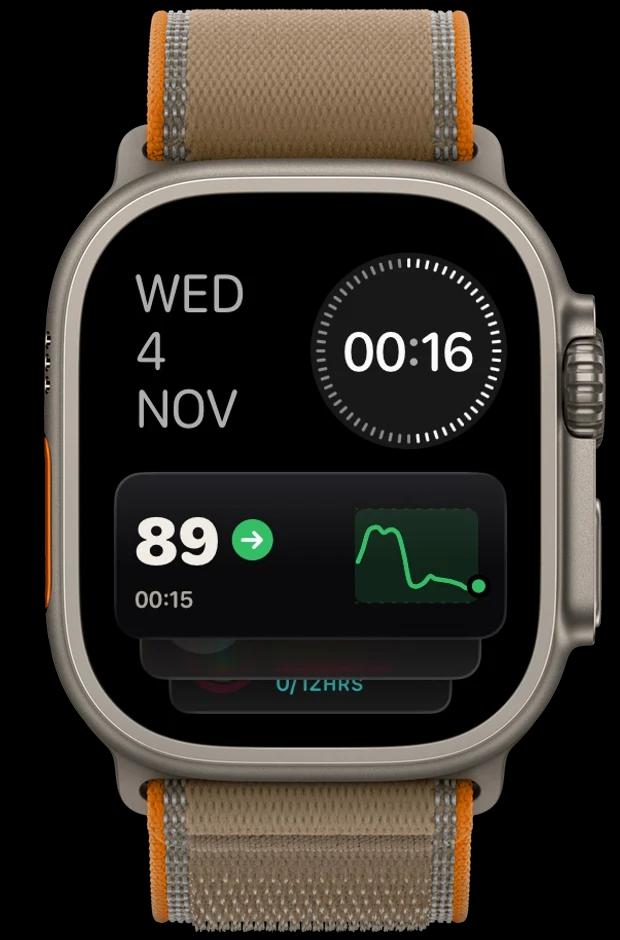
A small Dulce block that sits on your watch face next to the time, the weather or your rings. There are four shapes: rectangular (number, arrow and a chart of the last hours), circular, corner and inline.
To add it: touch and hold the watch face, tap Edit, swipe to the complications, tap a spot and choose Dulce.
Good
- Always on the watch face: just raise your wrist.
- Fits next to the rest of your face, and takes little room.
Keep in mind
- watchOS decides when the face is redrawn, to save battery, so it can be a few minutes behind. A timer counts down to the next reading, and the complication says old data when the reading is too old: glance at it before you act.
Smart Stack (Live Activity)
On watchOS 11 or later, the Dulce Live Activity from your iPhone also appears on the watch, in the Smart Stack. Turn the Digital Crown or swipe up from the watch face to see it. It updates with every new reading, just like your Lock Screen.
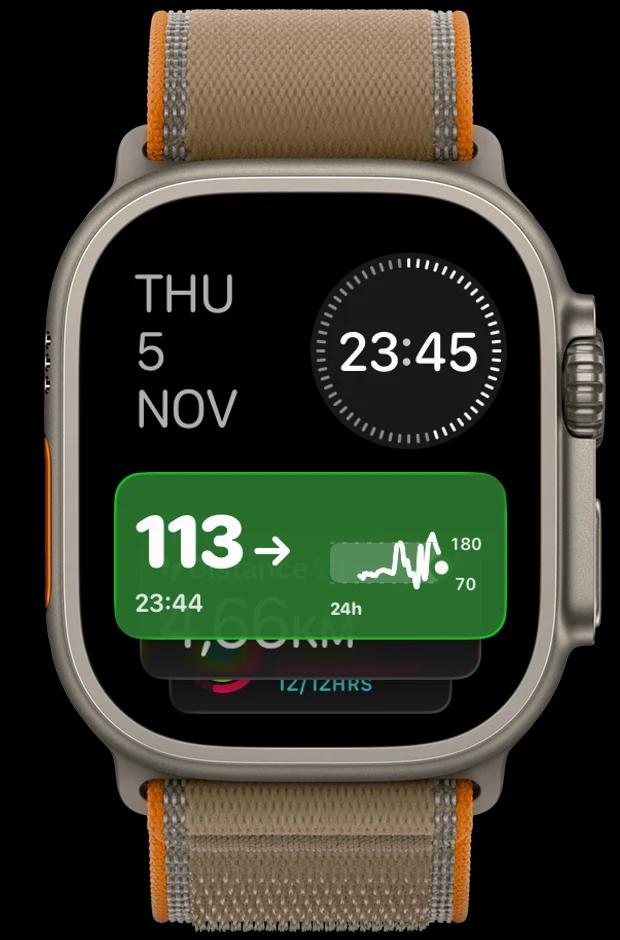
It needs the Live Activity on: in Dulce, Settings › Lock Screen and widgets › Live Activity & Dynamic Island. You can choose how the card looks in Live Activity style, under the CarPlay tab (iOS uses the same card for CarPlay and the watch).
Good
- Updates almost in real time.
- Nothing to set up on the watch.
Keep in mind
- It isn't on the watch face itself: one more turn of the crown or swipe.
- Only while the Live Activity is running on your iPhone.
The Dulce app on your watch
Open Dulce on the watch (or tap the complication) for the big number, the trend arrow, the change since the last reading and a chart you can widen to the whole day. The refresh button asks for the latest reading.
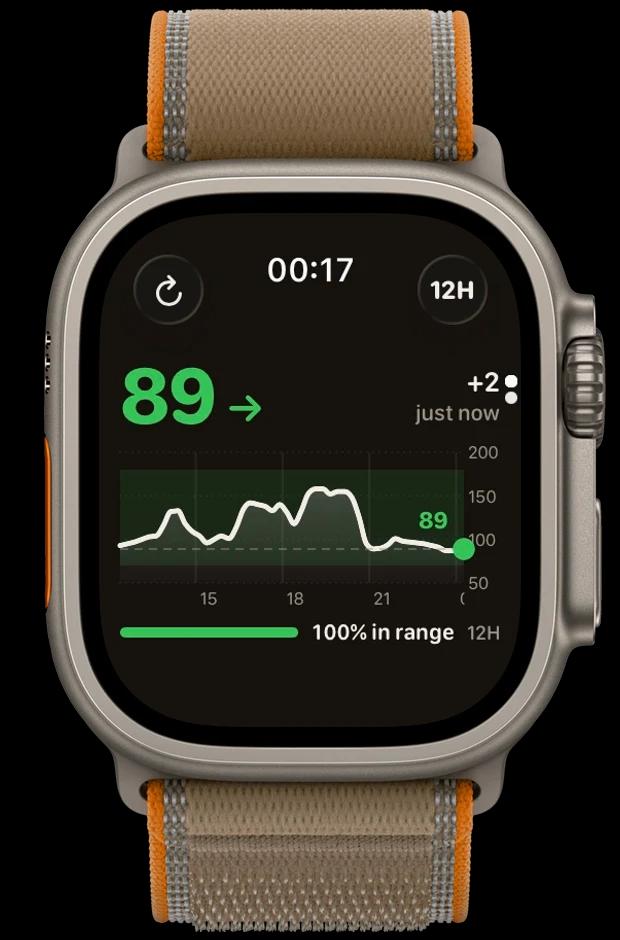
Want it to stay on screen, for example during sport? On the watch, open Settings › General › Return to Clock, choose Dulce and turn on Return to App. You can also set the time to After 1 hour.
Good
- The most information, always up to date while it's open.
- Can stay on screen for up to an hour.
Keep in mind
- You have to open it to see your number.
And alerts?
Alerts come from your iPhone. When the iPhone is locked and you're wearing the watch, iOS sends them to your wrist. You set them up in alerts.
If the number on your watch stops changing, see readings not updating.
Dulce ei ole lääkinnällinen laite. Se ei korvaa sensorisi hälytyksiä eikä hoitotiimisi neuvoja.
Etkö vieläkään pääse eteenpäin?
Kirjoita meille, niin ihminen vastaa, yleensä 48 työtunnin kuluessa.
hola@dulceglucosa.com